
Quick Answer: When should a website show a promotional popup?
Show an optional popup only when its offer fits the visitor’s task, the timing leaves that task intact and dismissal is easy. Try an inline offer or small banner if an overlay adds no clear benefit.
- Define the audience and page context.
- Exclude important steps such as active forms and checkout.
- Remember dismissals and completed signups where possible.
- Compare the main task and signup outcomes with a no-popup version.
A timer alone tells you little about whether a visitor is ready for an offer.
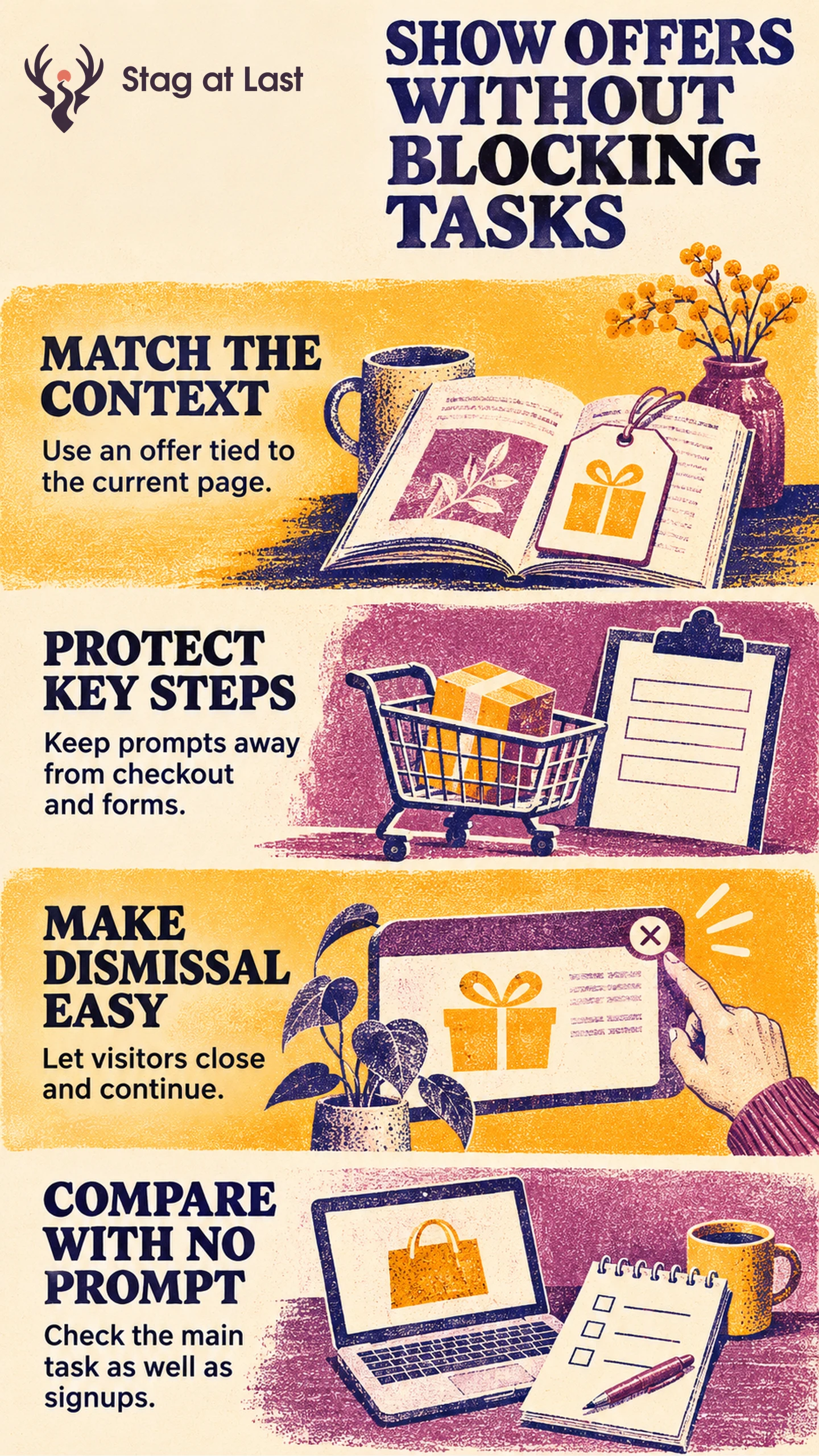
A visitor comparing delivery options has already started a task. A newsletter prompt covering the price or form can interrupt it even if the signup offer is relevant to the business. Design the prompt around what the person is doing on the page.
Match the Prompt to the Current Task
Choose an offer that extends the current task. For example, a visitor reading a guide about measuring a window may want a measurement sheet. An inline link near the measurement instructions lets them choose when to open it. Use a resource that helps with the task and state what it contains before asking for an email.
Google Search Central recommends compact banners over full-page promotional interstitials where the goal is to call attention to an offer without obstructing content. [1] Keep optional promotions separate from mandatory notices. A banner is still a poor fit if it covers a field, price or key control on a narrow screen.
Set Rules for When It Can Appear
List the pages, visitors and activity eligible to trigger the prompt. In a hypothetical retail campaign, the offer is a sizing guide. Show it when the sizing section enters view, provided the shopper has neither opened the guide nor started checkout. A permanent sizing link can serve visitors who ask for help. Suppress it while the shopper edits their delivery details or has already opened the guide.
Set a dismissal interval before launch and decide when eligibility resets after a completed signup. Apply the same rule to overlapping campaigns so one visitor does not see a series of prompts. Use a link in the page when you cannot reliably preserve a dismissal. Store only what the rules need and review how preferences apply to tracking.
Make Dismissal Work on Every Device
Provide an obvious close control with a clear name. For a modal dialog, the W3C modal pattern describes moving focus into the dialog, keeping keyboard navigation within it while open, allowing Escape to close it and usually returning focus to the invoking element. [2] For an automatically opened dialog, remember where focus was and restore it there or at the next logical control. Verify that assistive technology announces the dialog title, background controls cannot be reached while it is open and dismissal returns focus correctly.
Try the offer on a narrow screen, with larger text and with a keyboard. Close it and check that typed information, scroll position and the next step are still usable. Apply the accessibility checks for essential tasks and turn the prompt off if it blocks one.
Compare the Prompt With a Control
Randomly assign comparable eligible visitors to a no-popup version or a version with the prompt, keeping returning visitors in their assigned group where feasible. Report signups and primary actions per eligible assigned visitor over the same window. Check page reading, checkout or submitted enquiries as appropriate, using an agreed guardrail for the main task.
Define eligibility before assignment and keep all assigned eligible visitors in the outcome denominators. Use trigger counts, prompt displays and dismissals as diagnostics. Keep the popup only if its incremental benefit justifies its effect on the main task.
Verify Prompts in Each Website Language
If your WordPress site has more than one language, evaluate StagLingo on a few pages with prompts. Check the offer, close control and any eligibility terms in each version.
FAQs About Website Popups
Is there a best delay for showing a popup?
No single delay fits every visitor or task. Use a relevant action or page context when it provides meaningful evidence that the offer is timely.
Should a popup appear in checkout?
An unrelated promotional popup can interrupt payment or hide essential details. Keep those steps available and use a contextual inline offer if it supports the current decision.
Can an inline offer replace a popup?
Yes. Inline content can give visitors access to the same offer while letting them control timing. Test the placement and wording where the offer helps with the task.
Sources
[1] Google Search Central. Avoid intrusive interstitials and dialogs
[2] W3C Web Accessibility Initiative. Dialog (Modal) Pattern