
Quick Answer: How Do You Write a Product Announcement?
A product announcement tells a specific reader what they can do now, who has access and how to get started. Lead with the task the release improves and put eligibility close to the action link.
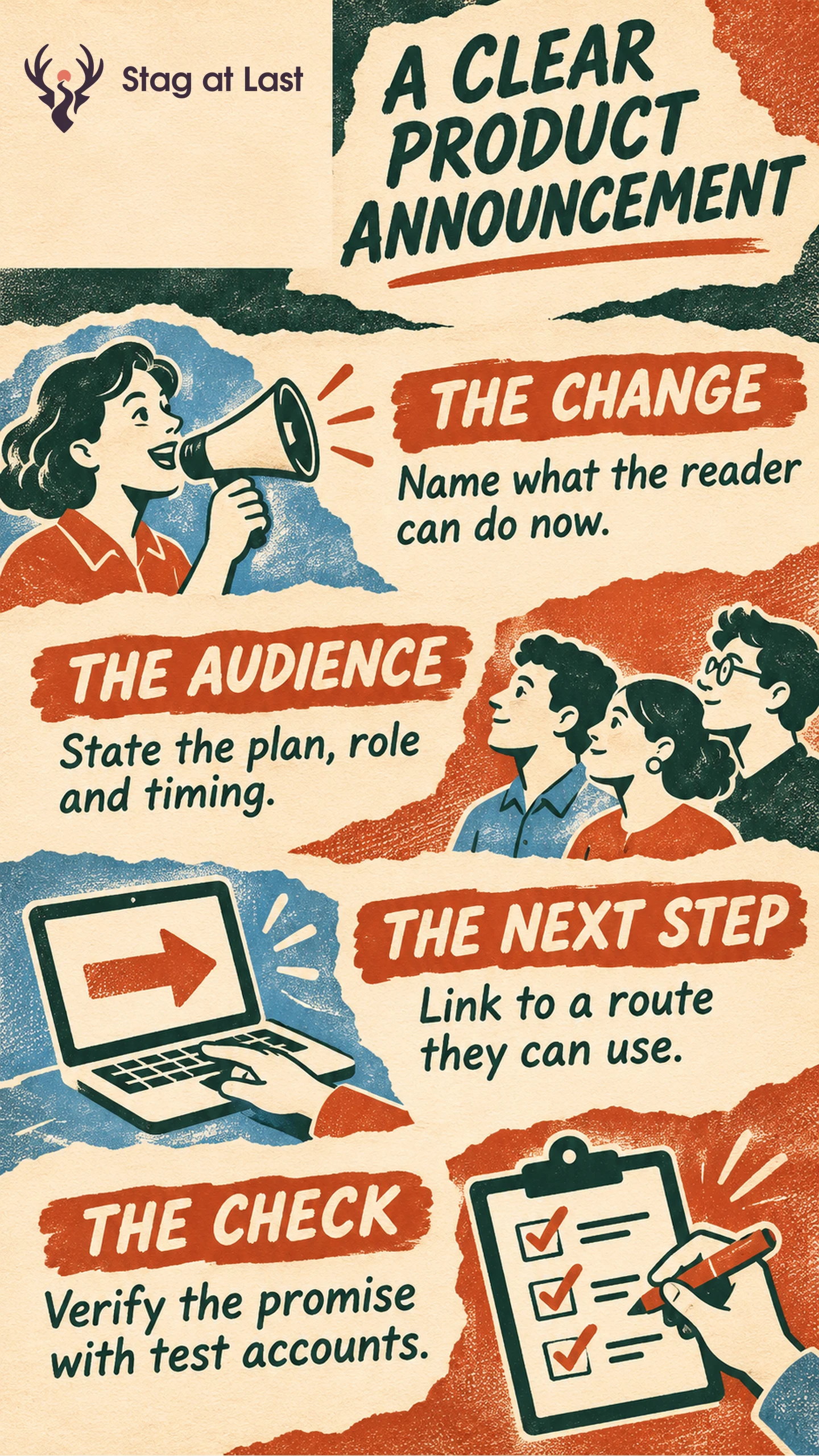
- Confirm the facts. Get the shipped behavior, rollout status, plan and permission from the release owner.
- Explain the change. Pair one concrete capability with the task it makes easier.
- Give one action. Send eligible readers to the feature and everyone else to the next step they can actually take.
- Check it live. Follow the link and confirm access with a representative account before sending.
A release with staggered access needs copy that can be corrected as the rollout changes.
“Introducing advanced exports” leaves three questions open. Which exports changed, what can a reader do with them, and can that reader use the feature today? Answer those questions before adding a quote, a screenshot or a second call to action.
Confirm the Release Facts Before Writing
Start with a release record that product, marketing and support can share. Note what shipped, which task it changes, what plans and roles can use it, the timing and the link that works for each audience. Add an owner who can confirm the record just before publication. Write down any prerequisite that could change the reader’s next action, such as a version update or admin approval.
Separate an announcement date from the date a reader gets access. Apple describes its App Store Connect What’s New field as a description of version changes and documents phased automatic iOS updates as a separate release setting. [1] Whatever channel you use, verify the release setting or entitlement in your own product before writing “available today.”
Write the Change in Terms of the User’s Task
Use a simple order for the lead. Start with the new outcome, name the capability that makes it possible and qualify who can use it. Explain the previous workaround only when the comparison makes the change easier to understand.
Here is a hypothetical lead for a reporting tool. “Send the same weekly report without rebuilding the export. Report owners on the Team plan can now save a column layout and reuse it on their next export. Open a report you own and choose Save layout.” The lead names the role, the plan, the behavior and the first action. It makes no claim about minutes saved.
If the feature is live for a limited test group, the middle sentence can say, “Invited Team workspaces can save one column layout per report during the beta.” Give invitees a route to the feature. Readers outside the cohort can view eligibility or request access if that option is open. Follow the beta recruitment plan for promises about access, feedback and support.
Adapt the Message to Each Audience and Channel
Choose the channel based on the job it can do. Intercom recommends placing feature announcements in the part of the product where the reader can use the feature. [2] Put a short prompt at the task location and use a linked help page for permissions or setup. Apply the same context and dismissal rules you use for other messages.
| Channel | What the reader needs | Useful next action |
|---|---|---|
| Product email | The outcome and whether their account has access | Open the eligible workflow or see rollout details. |
| In-app prompt | What changed on the screen and how to try it | Start the action where the feature is available. |
| Release notes | Scope, prerequisites and a durable record | Read setup details and known limitations. |
| Customer or sales briefing | How to explain the change to the affected account | Confirm who can use it before promising access. |
A required migration or retirement needs an explicit deadline, alternatives and help with the move. Use a separate deprecation communication plan when the old path is being withdrawn.
Test the Promise Against the Actual Release
Have an eligible user and an ineligible user follow the intended routes in a safe test environment or with approved test accounts. Verify the button label, permission requirement and destination. Give support the same entitlement and timing facts as the announcement, so readers get a consistent answer if they ask.
Pick a follow-through measure before sending. For the saved layout feature, count eligible accounts that successfully save a layout within a stated window. Keep this separate from opens and clicks. The launch measurement guide explains how to compare reach with adoption and activation. If a rollout slips after publication, correct the announcement and update the people whose instructions changed.
Check Announcement Copy Across Site Languages
If you publish release notes on a multilingual WordPress site, evaluate StagLingo on one announcement and its linked help page. Check that plan names, access limits and the next step are clear in each language.
FAQs About Product Announcements
Should an announcement include a release date?
Include the date if it helps readers know when to act. If access arrives by cohort, state the current cohort and where readers can confirm their own status.
What should you write during a staged rollout?
Name who can use the feature now and describe the next rollout step only as precisely as the release owner can confirm. Give affected readers a place to check for updates.
How do you tell whether the announcement helped?
Measure the action the message asks eligible readers to take and look for changes in support questions about access. These observations show what followed the announcement. A comparison is needed to estimate the announcement’s effect.
Sources
[1] Apple Developer. Platform Version Information
[2] Intercom Help. A Guide to Announcing Your New Features