
Quick Answer: When Should You Show an In-App Message?
Show an in-app message when the user can act on it in their current context. Set who qualifies, what triggers it, when it expires and what happens if the user closes it.
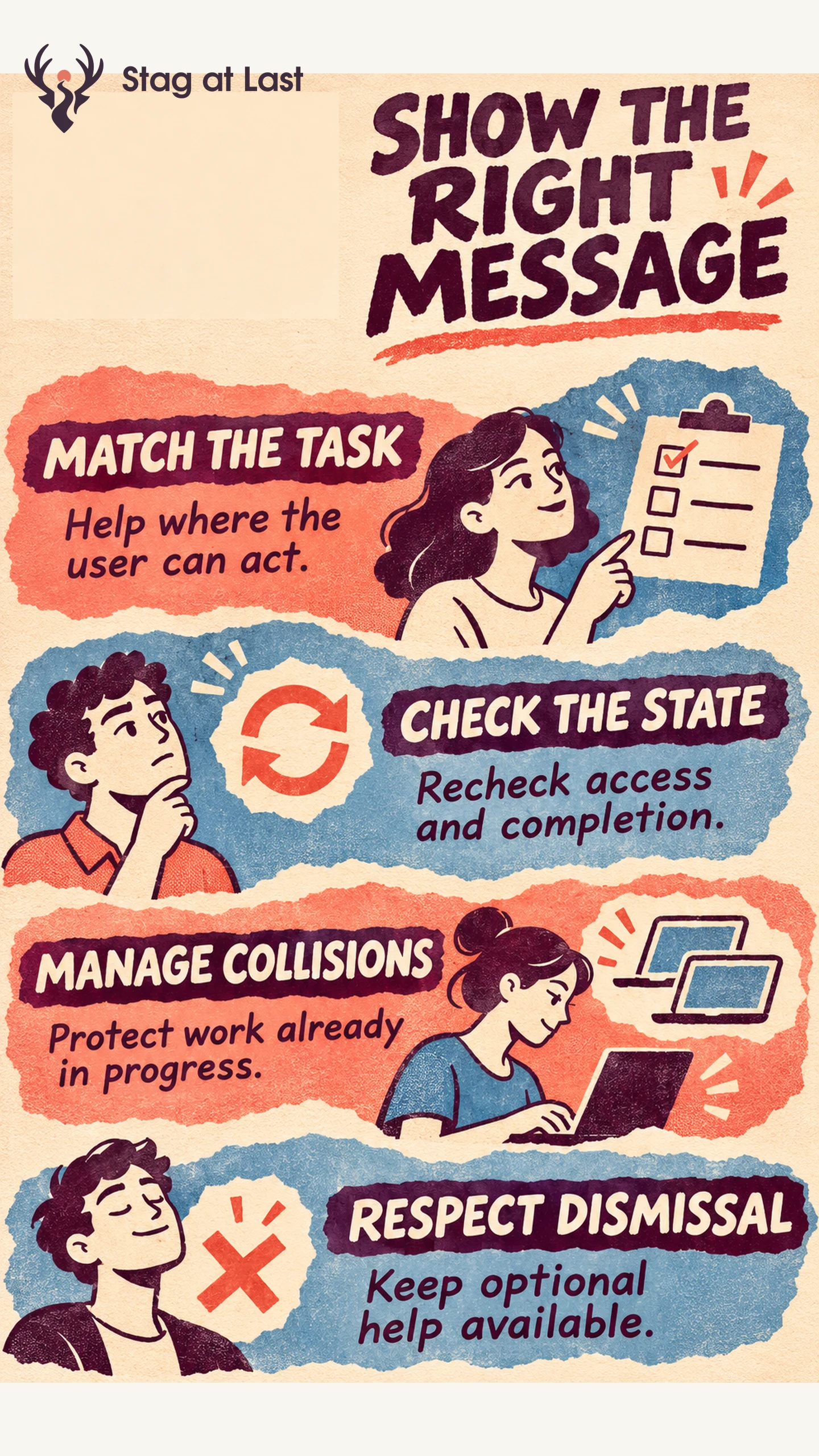
- Match the task. Use an inline hint or passive banner when the task can continue without interruption.
- Check the state. Confirm the user can take the action when the message appears.
- Manage collisions. Protect active work and prioritize notices with a direct effect on the task.
- Respect the response. Make optional messages dismissible and keep the help available elsewhere.
Test what happens when an event arrives late or a user completes the action on another device.
An offer to finish importing a file is useful only while there is still an import to finish. In-app messaging works best when the content and delivery rules share the same understanding of the user’s task. Write those rules before deciding how prominent the message should be.
Choose a Message That Helps With the Current Task
Start with one reason to show the message. An error belongs near the step where a user can recover. A feature hint can appear beside a relevant control. A general product announcement can live in release notes and appear in context for people who can use it. A message that interrupts work needs a reason proportionate to that interruption.
Suppose a hypothetical inventory app adds bulk editing. A person already editing one item can see a small link to the bulk tool if their role allows it. A person resolving a failed import needs the import error and a recovery path first. Use a durable help page for instructions that a user may need after dismissal.
Define Eligibility, Trigger and Expiry Separately
Eligibility describes who could benefit, such as catalog editors with access to the feature. The trigger describes when the message becomes relevant, such as opening the item editor after a successful import. A display check asks whether the state is still current. Expiry removes an old message when its information is stale or its action is complete.
Write the message as a rule. Show the bulk editing hint after a catalog editor opens an item with the feature available. Skip it during an active import or after the person has used bulk editing. If it cannot appear in the intended context, wait for a new eligible opportunity under your chosen rule.
Check how your tool handles delay. Intercom documents that an event-triggered message outside its configured sending hours is skipped for that event, rather than held until the schedule reopens. [1] If your message conveys a critical status, keep that status available in the workflow instead of depending on a single transient trigger.
Give the User Control When Messages Compete
Set a shared priority order across campaigns and define how often optional prompts can appear. Give immediate workflow problems priority over surveys and feature discovery. Let a checkout, import or other important flow finish before showing a prompt that does not serve it.
| Situation | Display rule | Verify |
|---|---|---|
| The user finishes the action first | Remove the reminder when current state shows completion. | No obsolete prompt after returning to the page. |
| Two optional prompts qualify | Show the one most relevant to the task and recheck the other later. | Neither prompt interrupts the first or shows against stale eligibility. |
| The user dismisses the hint | Respect dismissal across the scope promised and leave a help route. | The same hint stays closed in the stated session or account scope. |
Tell users if a control means close for now or stop showing the message. Save persistent preferences when you promise them, and check state across devices where appropriate. For first-task help, keep onboarding progress separate from message dismissal.
Test the Rule Against Real Workflow States
Test the message with eligible and ineligible accounts, an already-completed action, a delayed trigger and a competing higher-priority notice. Check narrow screens and keyboard operation. Then observe whether intended recipients can complete the task and whether dismissals, errors or support requests suggest interruption.
If comparing optional messaging with no message, use equivalent eligible groups over the same follow-up and keep required notices available. Turn off or narrow a rule when it appears in the wrong context, repeats after dismissal or sends users to an action they cannot take.
Check Help Destinations Across Site Languages
If in-app messages link to a multilingual WordPress help center, evaluate StagLingo on the linked pages. Check that each language takes the user to instructions that match the prompt.
FAQs About In-App Messaging
What is the difference between a trigger and an audience rule?
An audience rule describes who qualifies. A trigger describes what happened to make the message relevant at that moment. Check both before displaying it.
Should dismissed messages ever return?
Respect a permanent dismissal. If the user chose a temporary snooze, show the message again only when it remains useful and the snooze has expired.
What should you measure besides clicks?
Track whether eligible users complete the intended task and whether the message adds friction. Report delivery, dismissal and completion separately.
Sources
[1] Intercom Help. Using Events as Filters and Triggers