Getting started

Getting Started with StagLingo

Check your WordPress environment, install the correct StagLingo edition, activate Premium access when applicable, run Diagnostics, and complete a small test before using the plugin on a live multilingual workflow.

Before installation

Requirements and compatibility

StagLingo works at the WordPress and TranslatePress workflow level. Confirm the minimum platform requirements first, then use Diagnostics to inspect the parts that depend on the configuration of your own website.

WordPress 5.8 or later
PHP 7.4 or later
Translation layer TranslatePress

Required for the core workflow

These components must be available for normal StagLingo operation.

  • TranslatePress installed, configured, and active.
  • At least one target language configured in TranslatePress.
  • An administrator account with access to Tools and plugin settings.
  • The PHP DOM extension for rendered-content export and inspection.

Required only for selected features

Some capabilities depend on other products or services.

  • TranslatePress SEO Pack support is needed for translated URL-slug operations.
  • Your own supported AI-provider access is needed for automatic translation.
  • An active StagLingo license is needed for Premium functionality and updates.
  • Builder and cache behavior should be confirmed through a small real-page test.
Important: StagLingo does not replace TranslatePress and does not include a TranslatePress license, an AI subscription, or third-party API usage. If TranslatePress is inactive, StagLingo disables its export and import operations until TranslatePress becomes available again.
Choose your edition

Install StagLingo Free or Premium

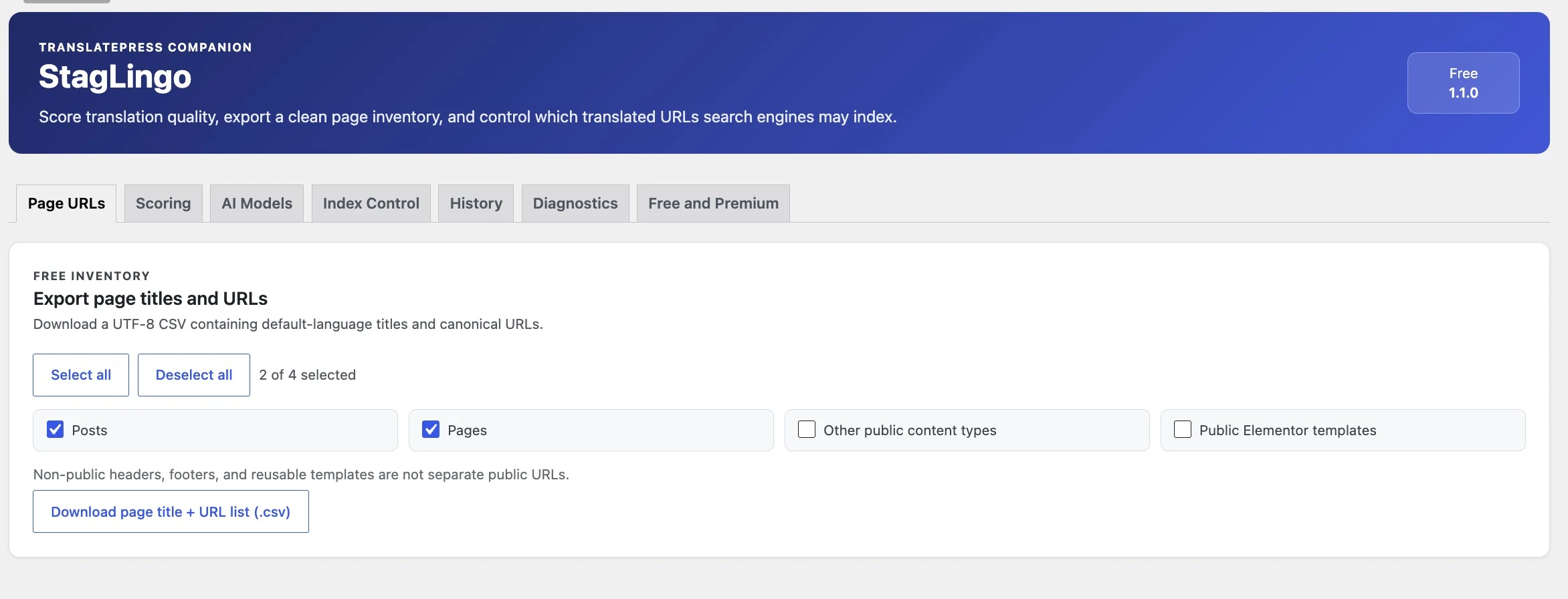
Free and Premium use the same StagLingo product identity. Install the edition that matches your access, then open the same administration area under Tools → StagLingo.

StagLingo Free interface in the WordPress administration area
StagLingo Free

Install the Free edition

  1. 01

    In WordPress, open Plugins → Add New.

  2. 02

    Search for StagLingo when its WordPress.org directory listing is available.

  3. 03

    Select the plugin published by Stag at Last, then click Install Now and Activate.

  4. 04

    Open Tools → StagLingo and continue to Diagnostics.

If WordPress.org search does not yet return StagLingo, the directory package is not currently available. Do not download a ZIP from an unofficial source; contact hello@stagatlast.com.

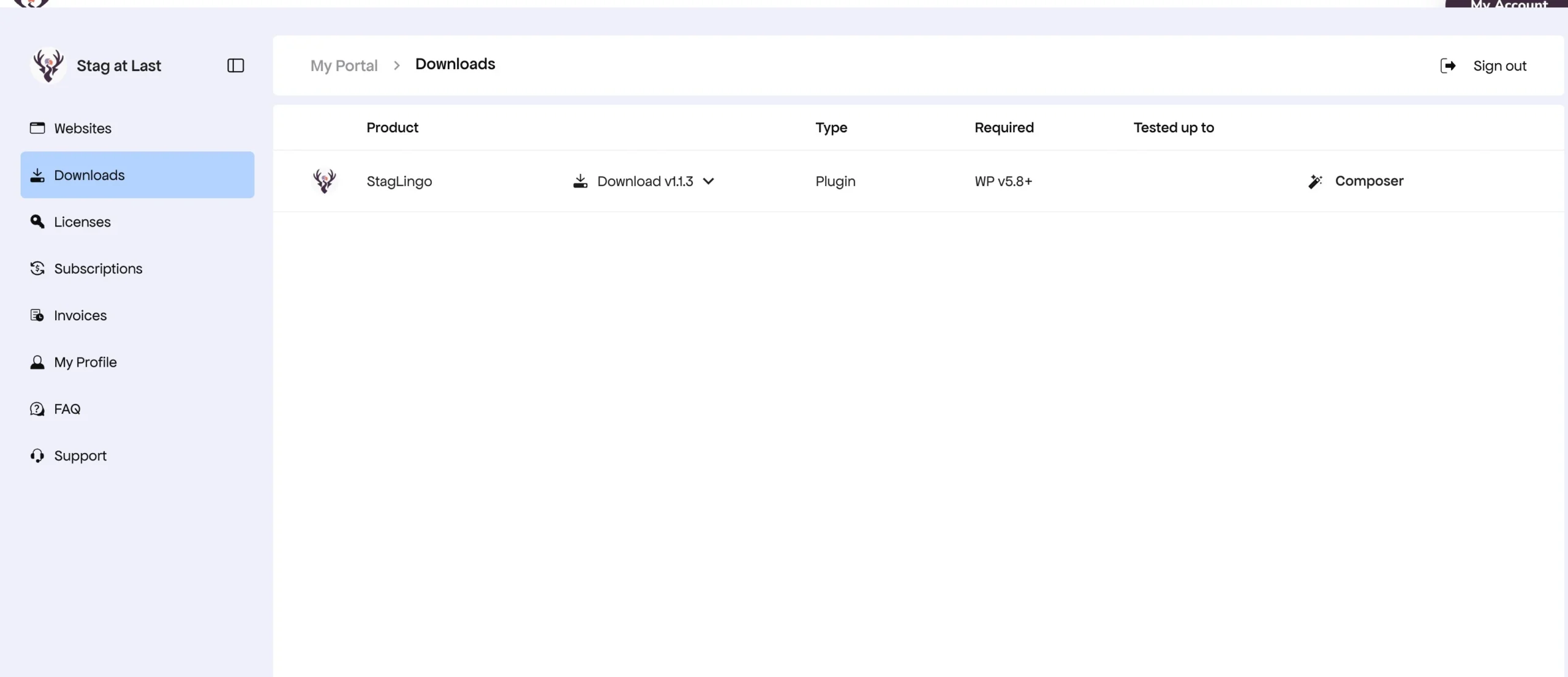
StagLingo Premium download available in the My Account portal
StagLingo Premium

Install the Premium edition

  1. 01

    Sign in to My Account using the email associated with the purchase.

  2. 02

    Open Downloads and download the current official StagLingo Premium ZIP. Do not extract it.

  3. 03

    In WordPress, open Plugins → Add New → Upload Plugin, upload the ZIP, and install it.

  4. 04

    Activate StagLingo Premium, then complete license activation when prompted.

If StagLingo Free is already active, activating the official Premium package automatically deactivates the Free build. Existing TranslatePress translations and retained StagLingo data are not removed by that switch.

Premium access

Activate and verify your license

Premium features and update delivery require an active license. Freemius provides the licensing and account connection used by the official Premium package.

  1. Complete the Freemius license step shown after activating Premium.
  2. Open Tools → StagLingo → License.
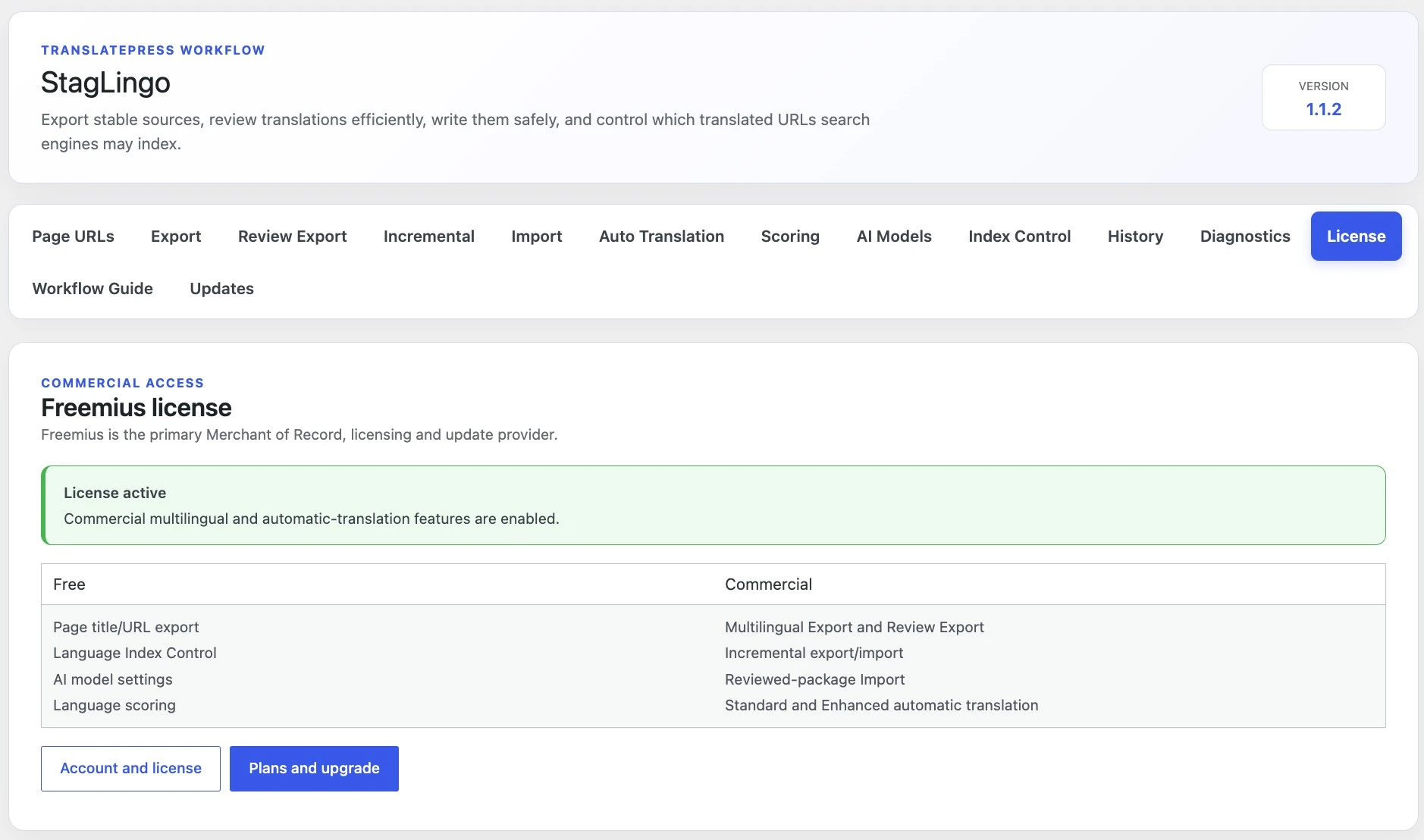
  3. Confirm that the status reports License active.
  4. Use Account and license when you need to manage the connected purchase.
One activated website uses one license seat. Development and testing sites use a seat while active, but the activation can be deactivated and moved when testing is complete or the domain changes.
StagLingo License tab showing the Freemius license status
Use the License tab to confirm Premium entitlement and open the connected account.
First administration check

Open StagLingo and run Diagnostics

Installation success only confirms that WordPress loaded the plugin. Use the Diagnostics page to check the environment StagLingo will actually use before exporting or importing multilingual content.

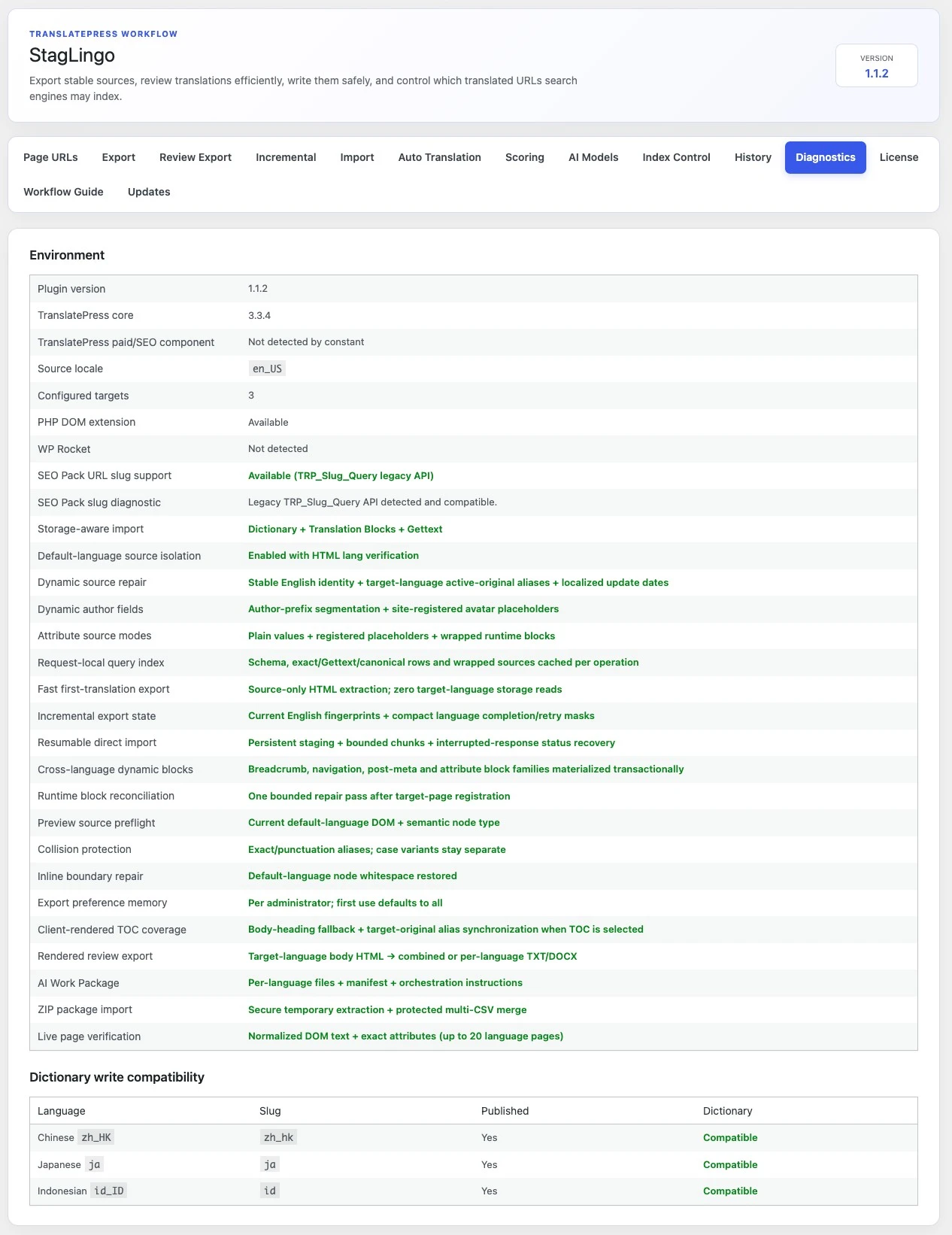
StagLingo Diagnostics page showing environment and TranslatePress compatibility checks
Diagnostics reports the detected environment; available items vary with the site configuration.

Confirm these items before continuing

TranslatePress is detected

If it is inactive, export and import remain disabled.

Source and target languages are correct

Check the configured locales and published language state.

Dictionary status is Compatible

Resolve a reported dictionary problem before testing an import.

PHP DOM extension is Available

Ask the hosting provider to enable it if rendered-content export reports it missing.

SEO Pack URL slug API is Available when needed

This check matters when the workflow includes translated page slugs.

Before a full project

Complete one small controlled test

Do not begin with the largest page or every configured language. A short page makes it easier to confirm extraction, file handling, storage, cache clearing, and the actual translated frontend.

01

Limit the scope

Choose one short test page and one target language. Keep the first package small enough to inspect manually.

02

Follow one workflow

Use the documented manual or automatic workflow without mixing steps from different modes during the first test.

03

Verify the live page

Open the real target-language URL in a private browser window and confirm what visitors receive, not only what an import status reports.

Back up the staging database before the first import test. A successful test should include a review of the generated History and backup records as well as the rendered target-language page.
Keep the installation current

Update StagLingo without discarding your workflow data

Use the normal WordPress update or official package replacement process. Deactivation and in-place updates are designed to retain StagLingo records and existing TranslatePress translations.

Free updates

Once the WordPress.org edition is available, install its updates from the normal WordPress Plugins screen.

Premium updates

An active license provides Premium update delivery through Freemius. You can also obtain the current official ZIP from My Account when a manual replacement is required.

Before replacing a version

  • Read the relevant Release Notes.
  • Back up the database before a major production change.
  • Finish or safely pause active imports before updating.
  • Prefer Update or Replace current version instead of deleting the plugin first.
  • Return to Diagnostics after the update.
Current documentation

Everything StagLingo, organized in one place.

Browse the complete documentation by setup, workflow, operation, quality control, troubleshooting, or release history.

Open StagLingo docs